Your shifts, checklists and time off.
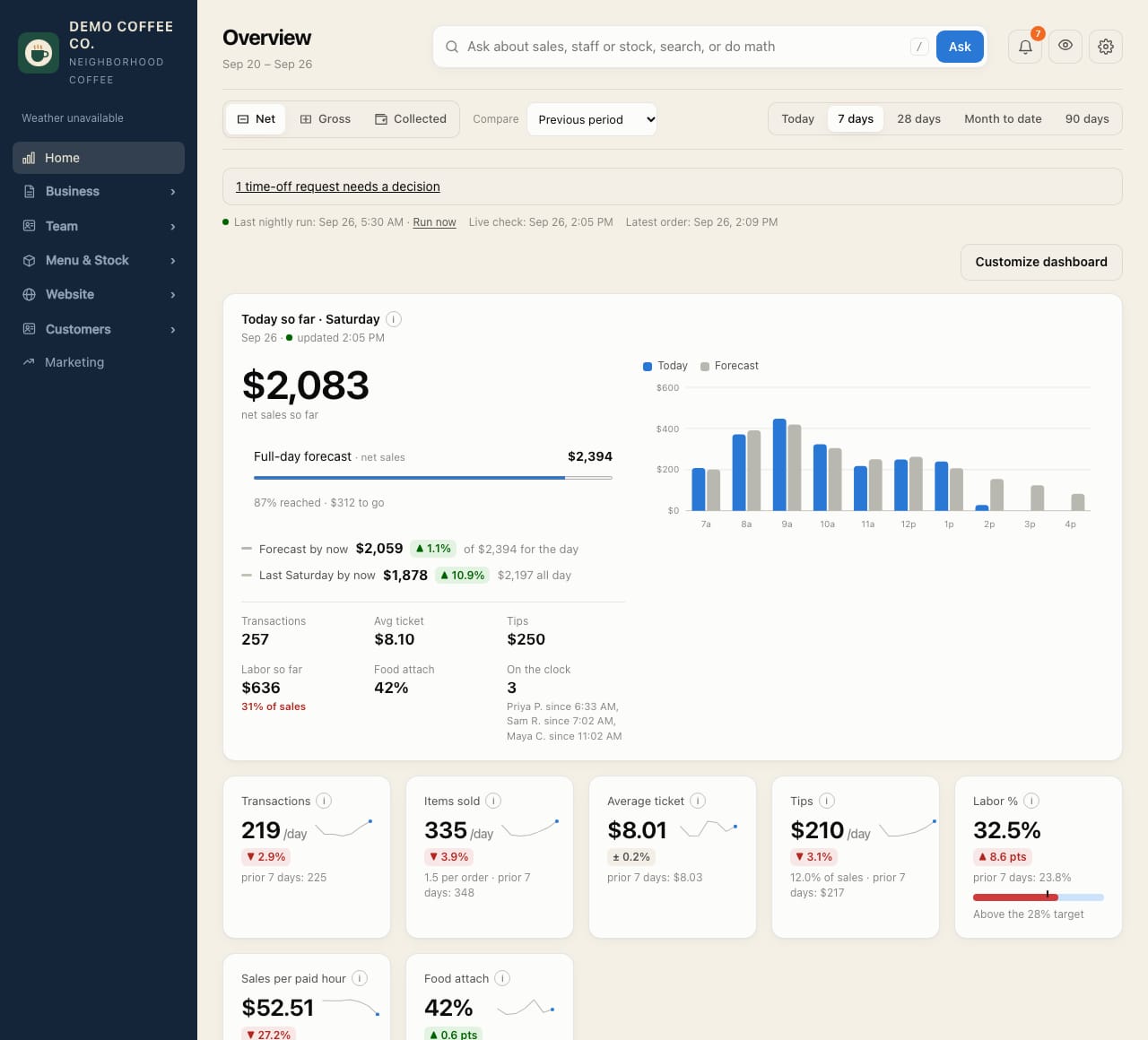
Start on Home for your daily work. Use Profile for your personal details. Watch the short walkthrough →
Get CafeDash on your phone
Open the invite email, choose a password, then put CafeDash on your home screen. There's nothing to download from an app store.
- Open the link in Safari.
- Tap Share, then Add to Home Screen.
- Open CafeDash from the home screen icon.
- Go to Profile → Notifications and turn them on.
Notifications need iOS 16.4 or newer, and only work from the home screen icon.
- Open the link in Chrome.
- Optional: tap ⋮, then Add to Home screen.
- Go to Profile → Notifications and turn them on.
On Android, notifications also work straight from the browser.
Do a checklist
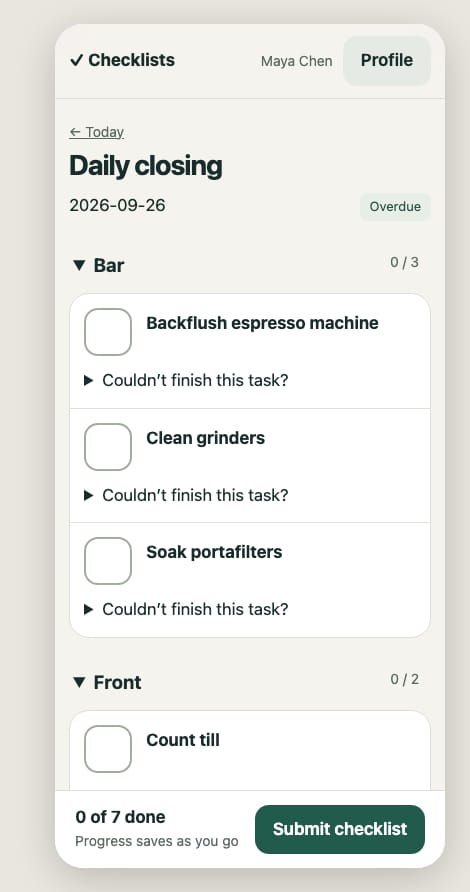
- Open Checklists from Home, or tap the reminder.
- Tick each task as you go. Progress saves by itself.
- A temperature check? Type the reading. If it's outside the safe range, say what you did about it (moved the food, called a manager). Your manager is told right away.
- Can't do a task? Leave a short note on it.
- To show a problem, use Notes & photos at the end of the checklist. Write a note and tap Add photo to choose or take a photo. Tell your shift lead about urgent problems.
- Tap Submit checklist when you're done.
On the shared store tablet, tap your name and enter your PIN (4 to 6 digits; it can be the same as your Square register code). You choose it when you first sign in, or with Set your tablet PIN on your checklists page.
Shifts, time off and swaps
- Home shows your next shift and work shortcuts. My shifts has your schedule, time off and swaps. Training → My training has your onboarding to-dos.
- Time off: request whole days or part of a day, then watch for the decision.
- Availability: set the hours you can work each weekday.
- Swaps: offer a shift, or accept one a coworker offered. A manager approves it.
- Calendar: Profile → Calendar gives you a link for your iPhone or Google calendar, so shifts show up with an alert an hour before.
- Food handler card: add it under Profile → My certificates with a photo. You'll be reminded before it expires.
Use Profile for contact details, notifications, your calendar link and certificates.
A five-minute routine each morning.
Most problems show up here first. Each of these opens from the Team menu.
Review checklists
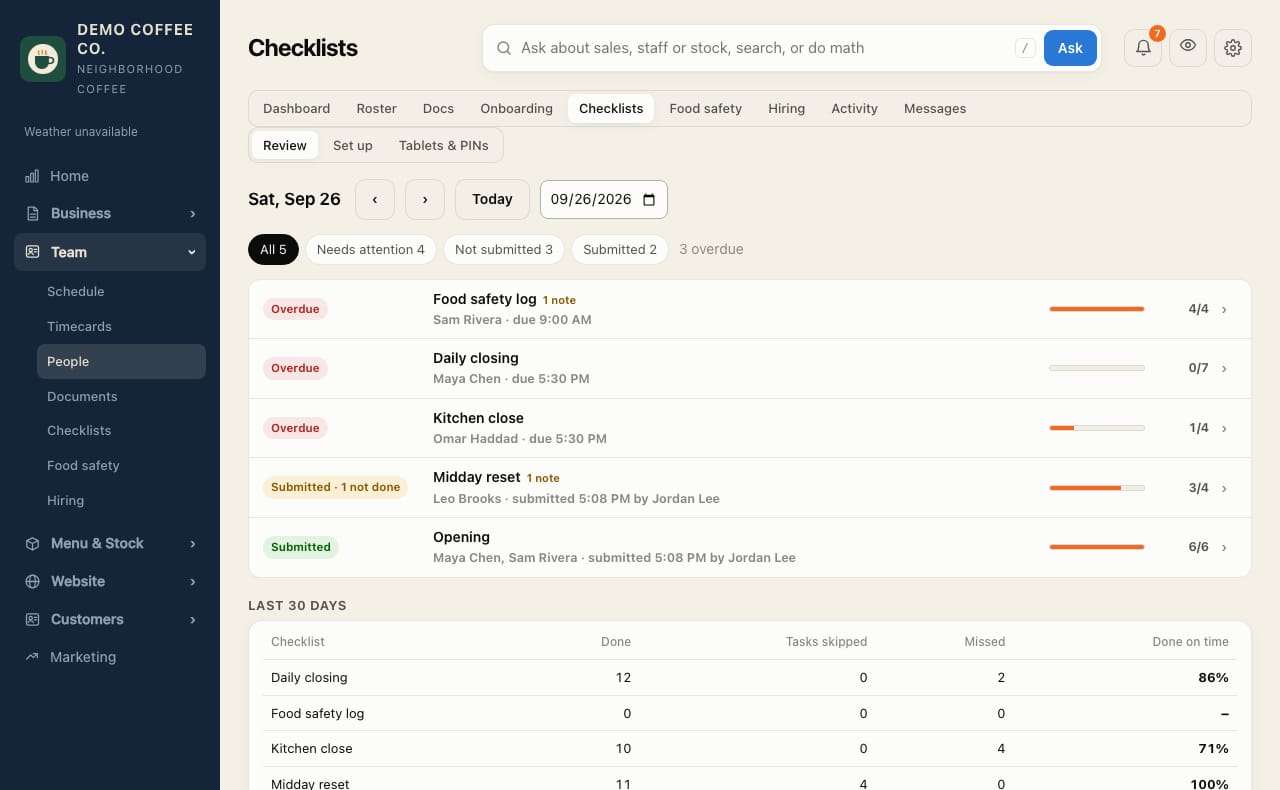
- Team → Checklists → Review lists today's checklists with problems first.
- Tap a row to see notes, assign someone, or reopen it.
- "No one assigned" says why, usually that the scheduled person hasn't joined yet.
- Lists nobody finished close as missed on their own, so old ones don't pile up. Use Close as missed to close one sooner.
- Last 30 days shows how often each list gets done.
Fix timecards
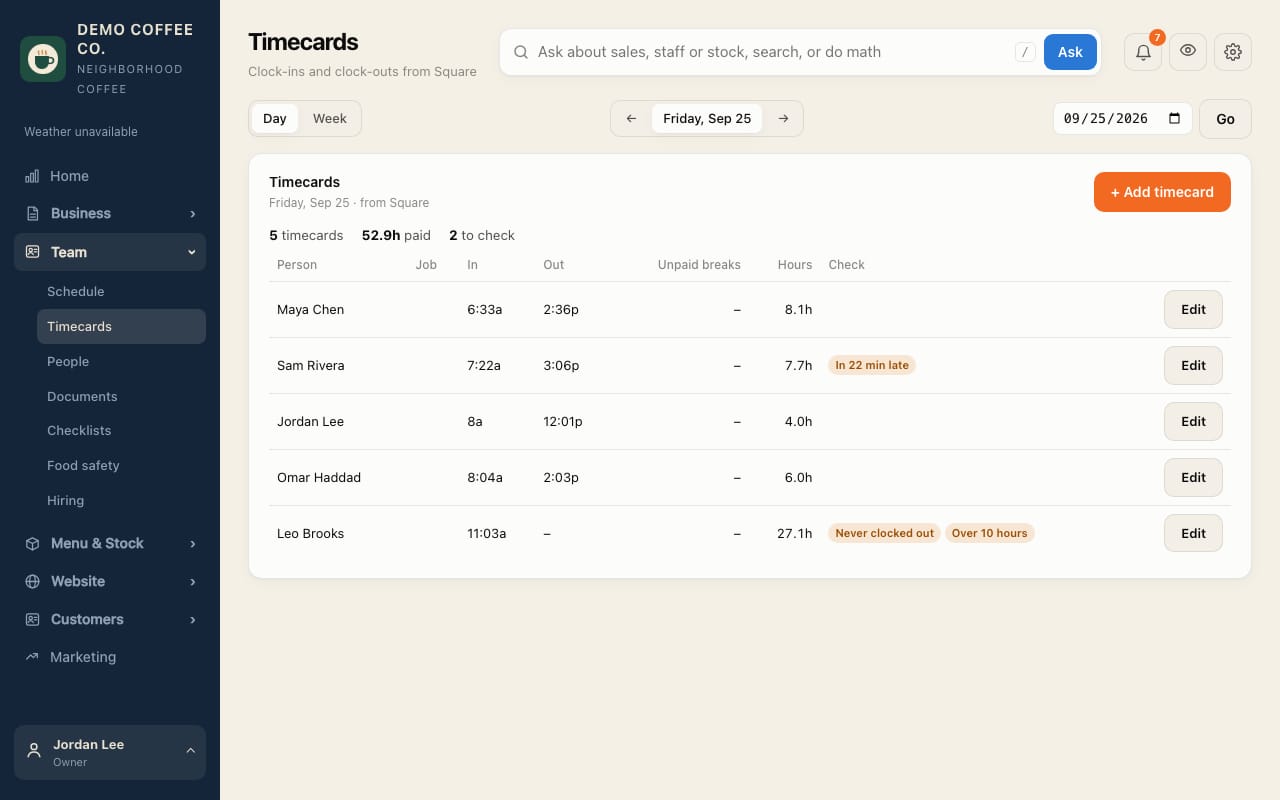
- Open Team → Timecards. It starts on yesterday.
- Look for amber timecards: never clocked out, over 10 hours, late or left early.
- Tap Edit, correct the clock-in or clock-out, and save. It's saved to Square.
- Missing a timecard? Tap + Add timecard. A duplicate? Open it and tap Delete.
Switch to Week to see everyone's week and who's heading into overtime. Fixing needs the "Fix timecards" permission, and the owner has to turn on timecard fixes in Settings.
Message the team
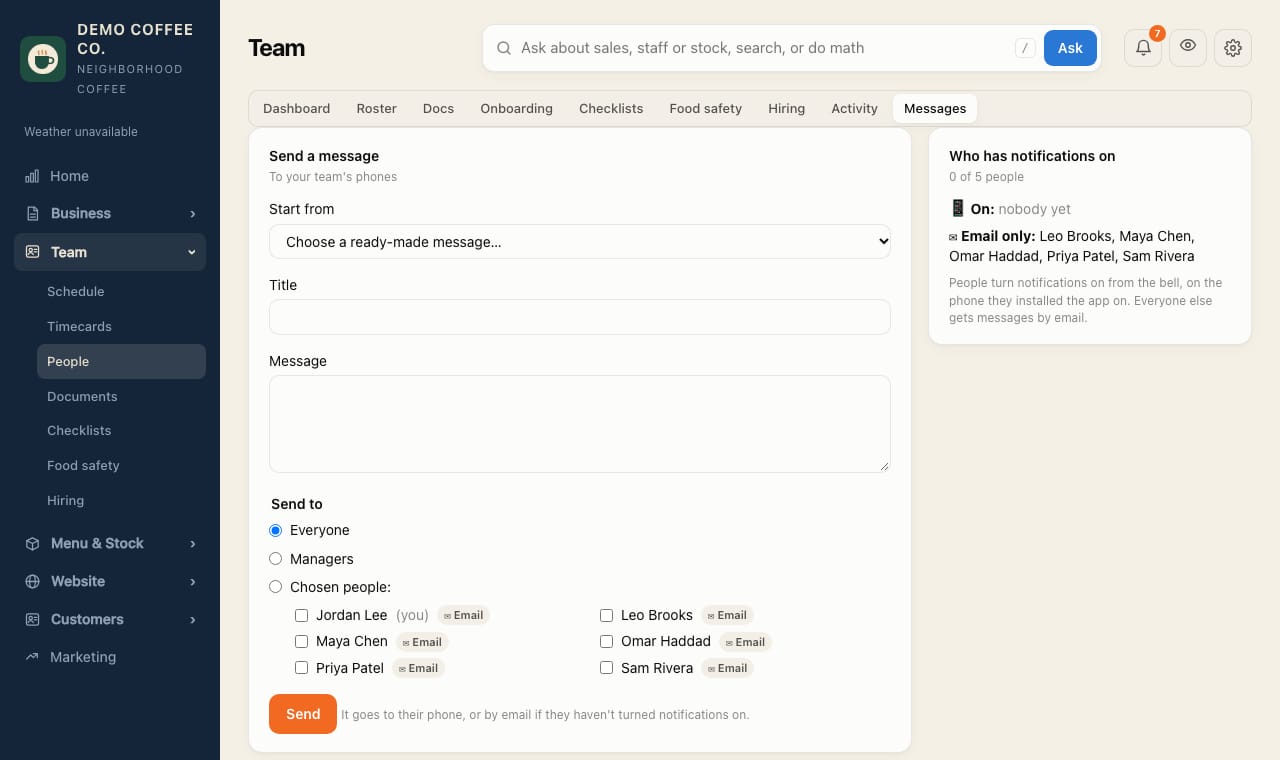
- Team → Messages: start from a ready-made message or write your own.
- Send it to everyone, managers only, one store, or people you pick.
- Each name shows 📱 Phone or ✉︎ Email, so you know how it'll arrive.
- Pick yourself to send a test first.
Food safety
- Add the food safety log from Team → Checklists: fridge, freezer, hot holding, delivery and sanitizer checks. Any task can ask for a temperature with a safe range.
- A reading outside the range needs a note on what was done, and you're notified right away.
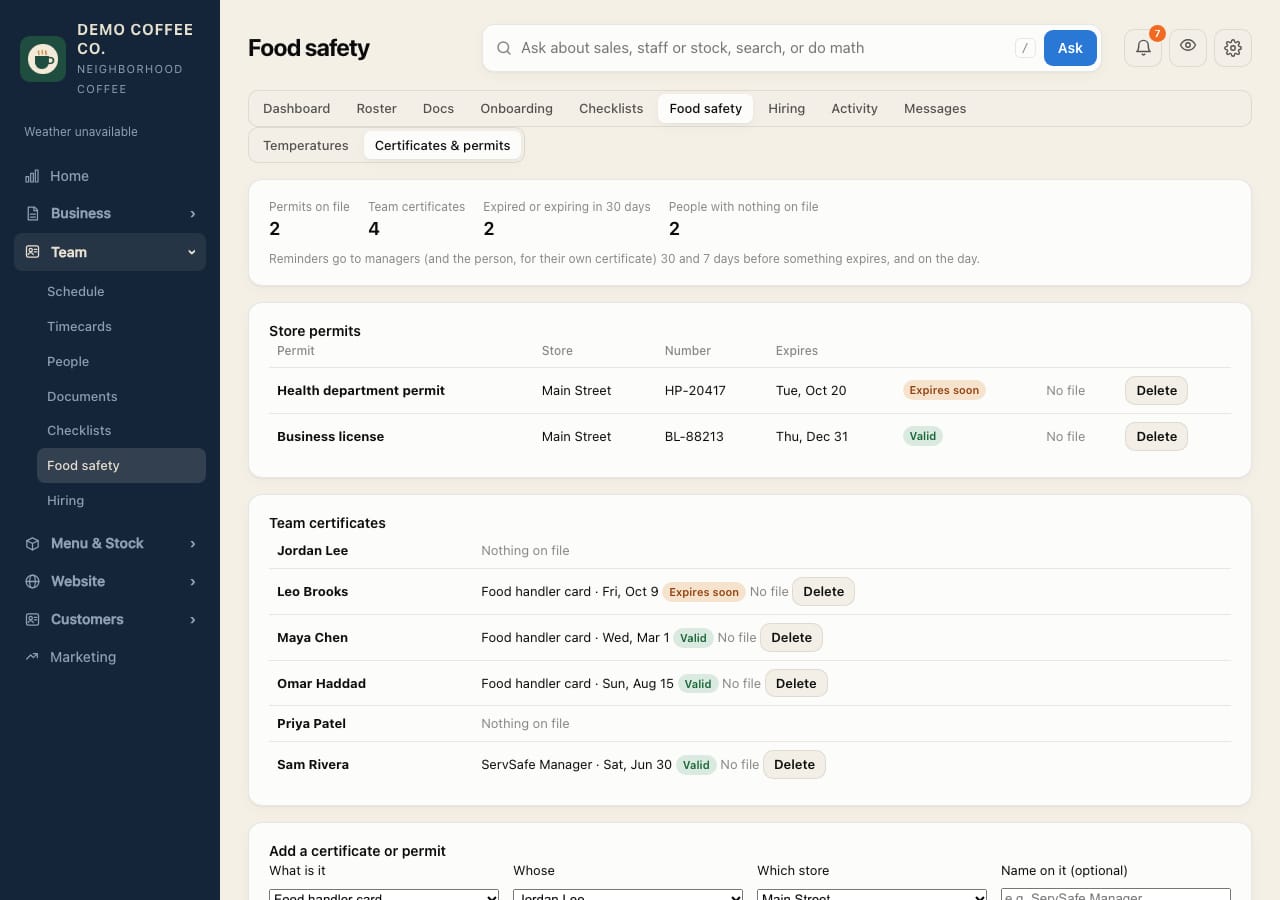
- Team → Food safety shows every reading, with a CSV for the inspector, plus Certificates & permits: health permit, business license and each person's food handler card, with reminders before they expire.
Hire someone
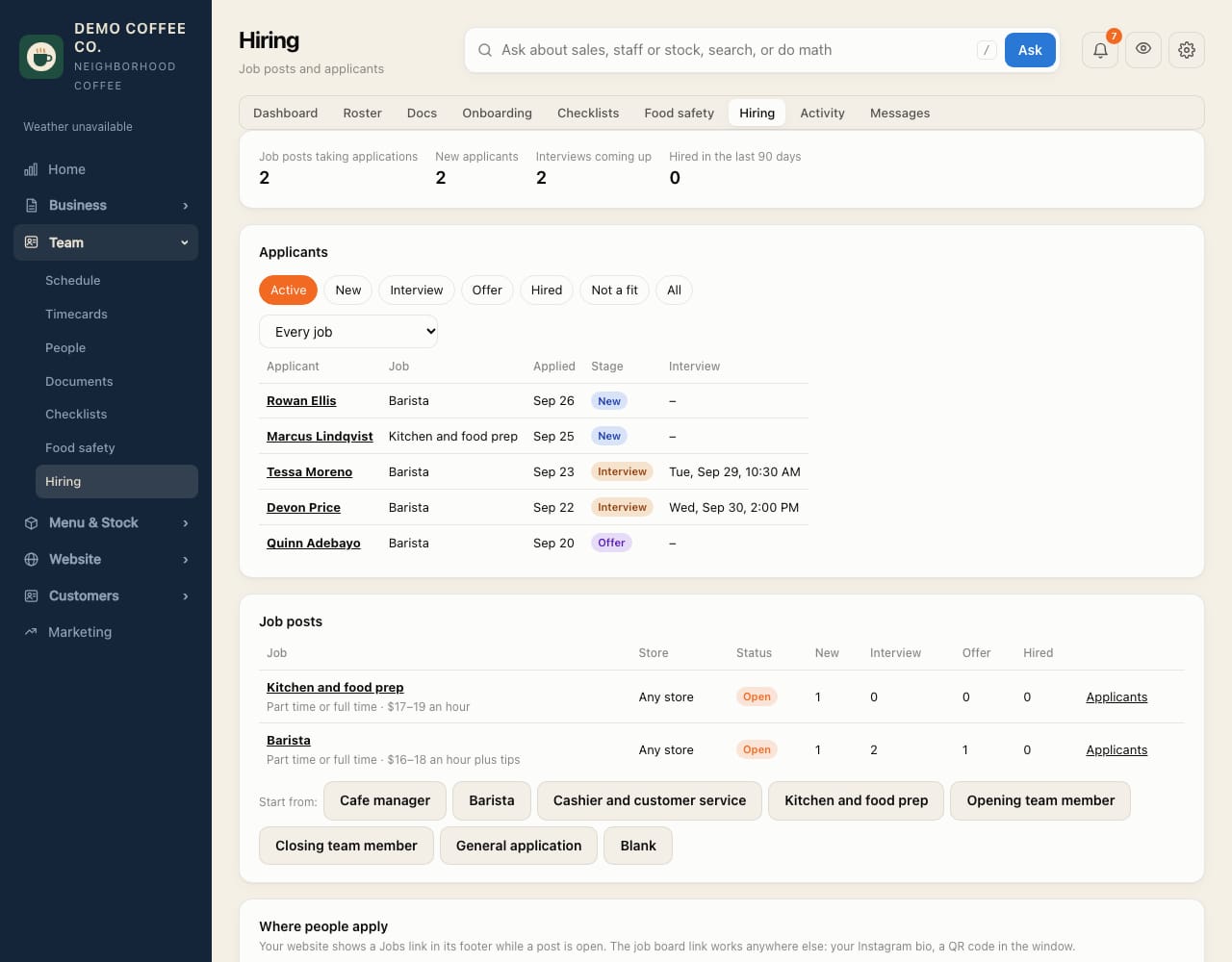
- Team → Hiring: start a job post from Cafe manager, Barista, Cashier, Kitchen, Opening or Closing, and change anything. Not hiring right now? Post a General application instead.
- Open posts show on your website's Jobs page, with a link in the footer. The job board link works on Instagram or a QR code in the window. People apply from their phone.
- You're notified of each applicant. Move them to Interview (add the time), then Offer, and keep notes.
- Hire emails their invite and starts their onboarding plan on their first day. Managers review; the owner hires.
- Add them in Square too, for timecards and payroll, then link their Square profile on Team → Roster.
Build next week's schedule
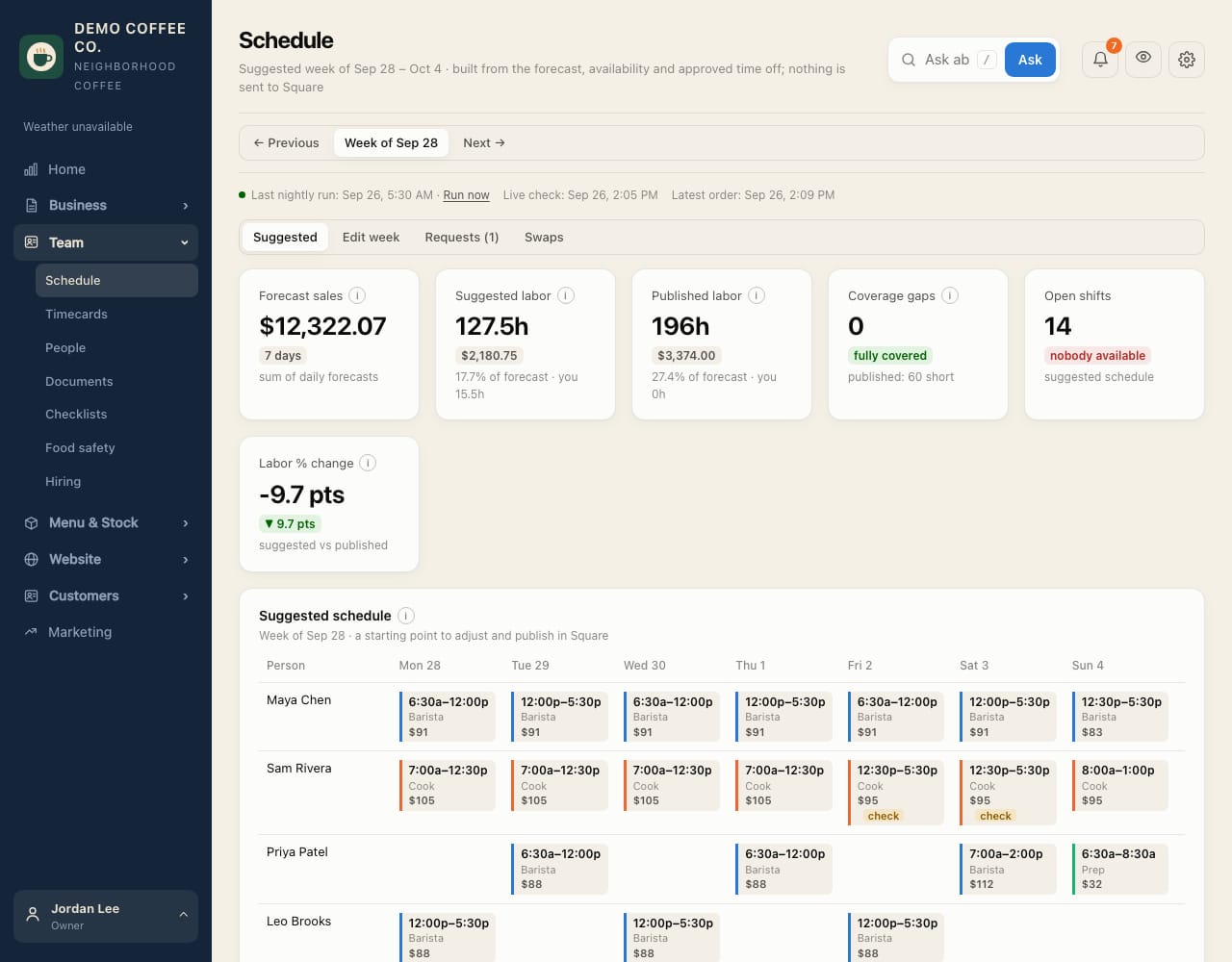
- Team → Schedule → Suggested shows a week built from the forecast, availability and time off.
- Open Edit week. Start from the suggestion or copy last week, then adjust shifts.
- Watch the warnings: time off, availability, long or double shifts, weekly hours.
- Review & publish sends it to Square and chooses who Square emails.
Keep an eye on labor
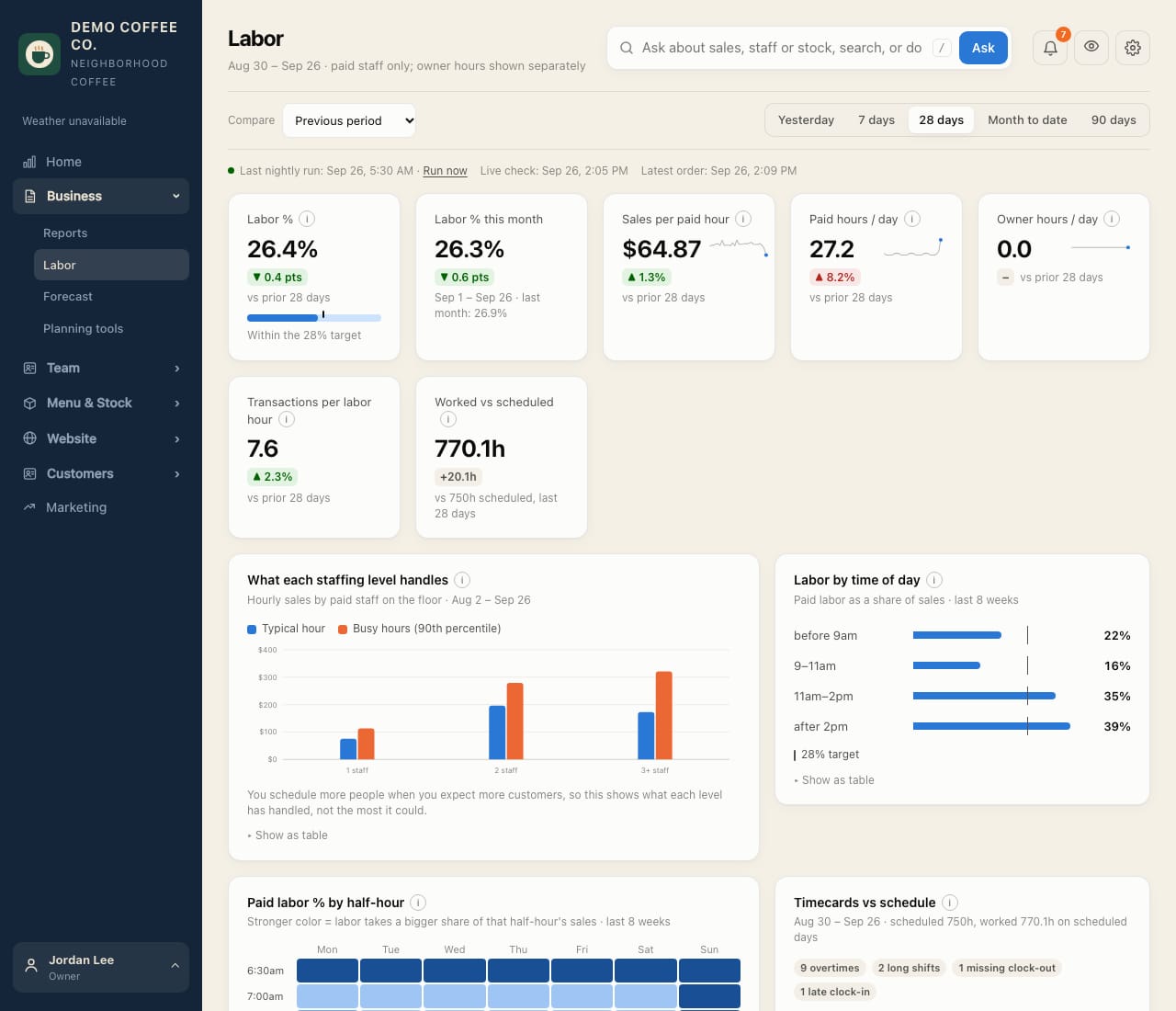
- Business → Labor shows labor % this month against last month.
- See what one, two or three people handle per hour, and labor % by time of day.
- Timecards against the schedule: late clock-ins, early clock-outs, no-shows and covered shifts.
Know your regulars
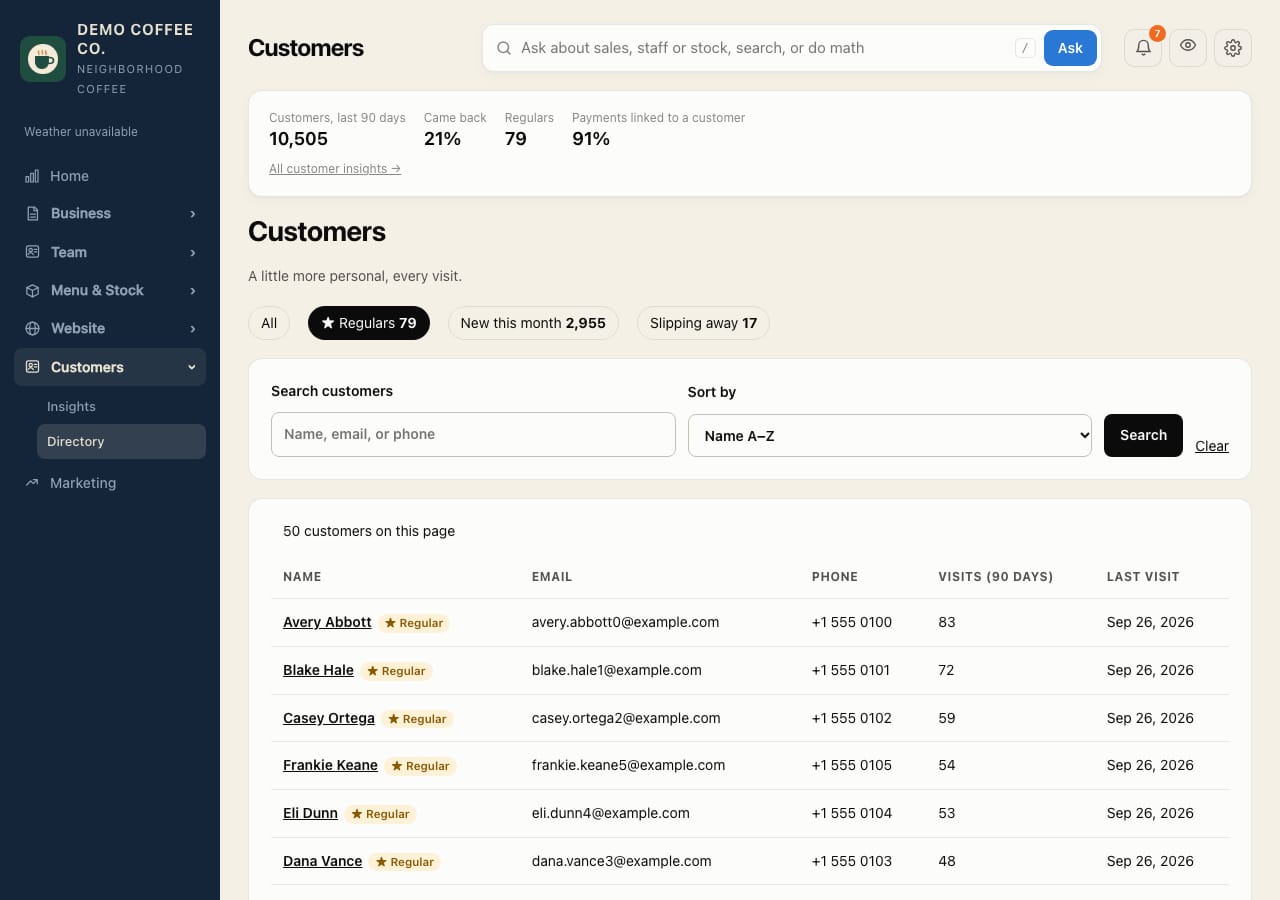
- Customers → Directory: tap ★ Regulars, New this month or Slipping away.
- Open a customer to see their visits, what they usually buy, and their loyalty balance.
- Greet regulars by name. Notice who hasn't been in for a while.
Setting up, and deciding what CafeDash may change.
First-time setup
- Connect Square or Toast in Settings → Point of sale. Your stores and recent sales come in on their own. No point of sale? Add your store under Profile → Business.
- Check your business in Profile → Business: name, logo, address, phone and hours.
- Invite your team in Team → Roster. "Invite all active staff" covers everyone in your point of sale.
- Set roles in Settings → Roles & access. Staff never see pay.
- Turn on the evening email in Settings → Reports & email, and send yourself a sample.
- Set up checklists in Team → Checklists → Set up, and pair a tablet if you use one.
- Choose your dashboard in Settings → Dashboard, including which key measures show.
- Set your rules in Settings → Rules: labor target, pay schedule, timecard flags, when unfinished checklists close, and what counts as a regular.
- Decide what may change in Square (next).
What CafeDash may change in Square
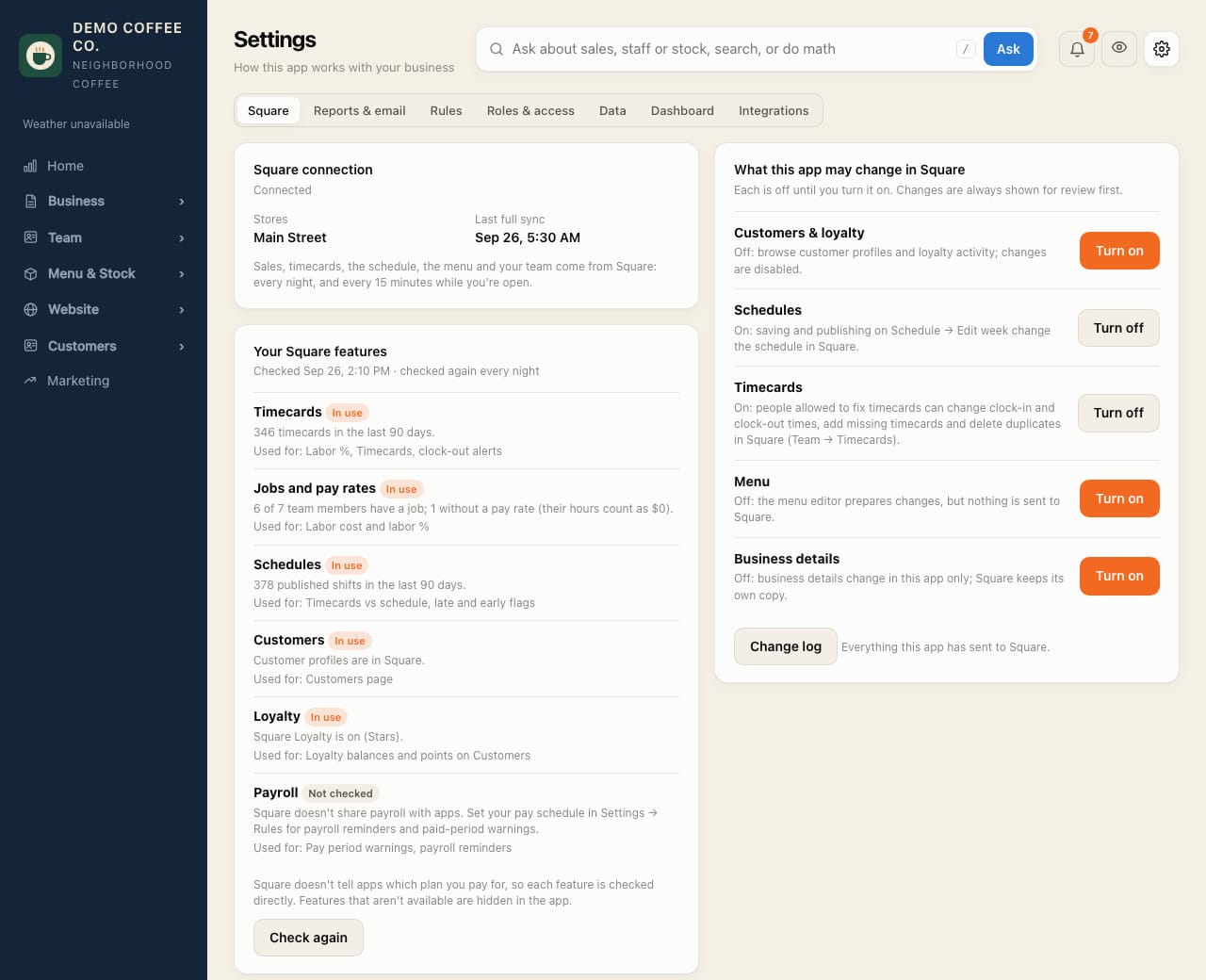
Until you turn something on, CafeDash only reads from Square. Each of these has its own switch in Settings → Square:
- Schedules: publish the week from CafeDash.
- Timecards: managers fix clock-ins and clock-outs.
- Menu: edit items, prices and modifiers.
- Business details: name, contact details and hours.
- Customers and loyalty: edit profiles and adjust points.
Every change is reviewed first and listed in the Change log. Your Square features shows which Square features you use; anything you don't have is hidden.
Connect other apps
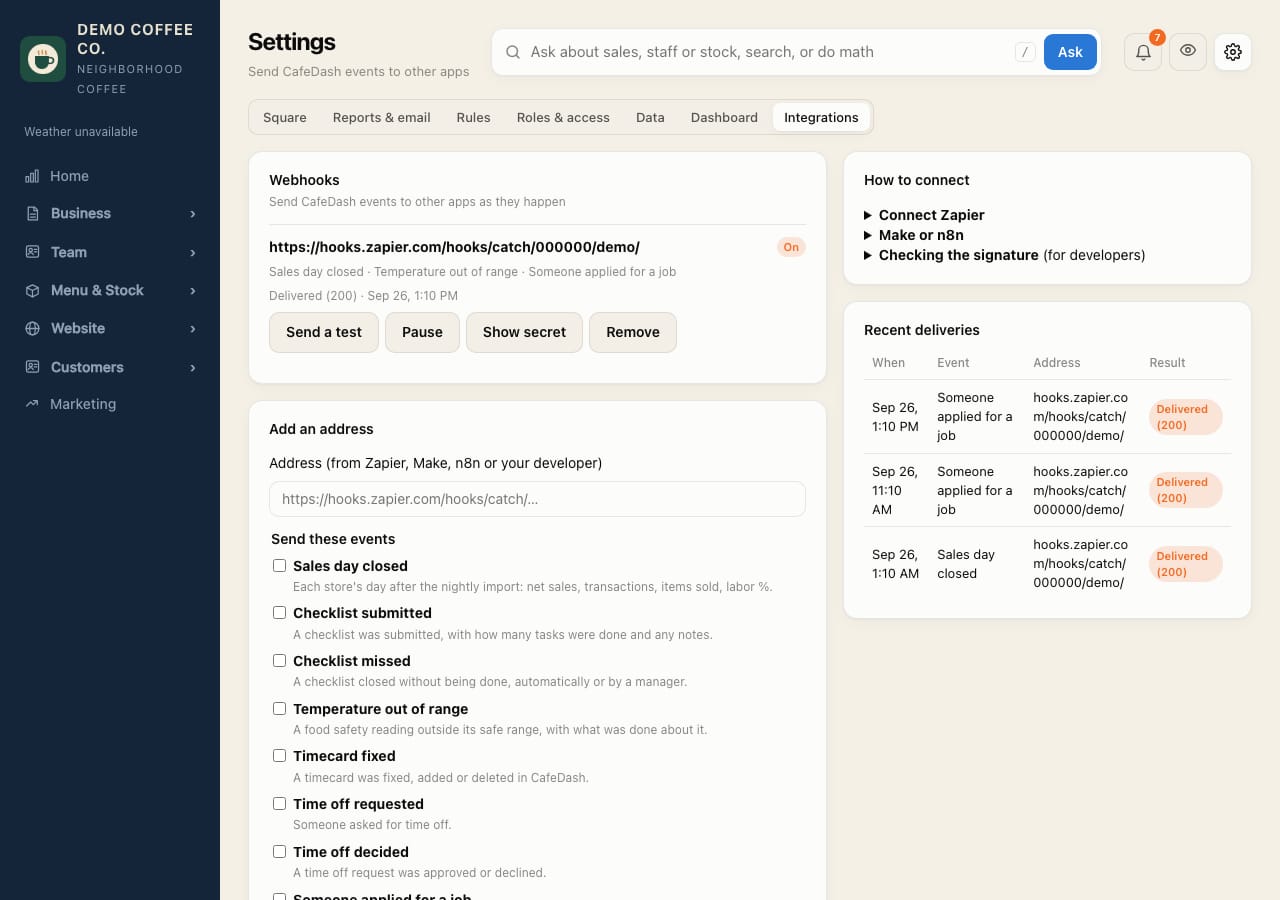
- Settings → Integrations sends CafeDash events to Zapier, Make, n8n or your own system: sales each night, checklists, temperatures, timecard fixes, time off, certificates and new applicants.
- In Zapier, choose Webhooks by Zapier → Catch Hook, paste its address here, pick the events and press Send a test.
- Then build the rest in Zapier: a Slack message, a Google Sheets row, a text.
Customer insights and win-back
- Customers → Insights shows return rate, regulars, their share of sales and top customers, for 30 days, 90 days or a year.
- Slipping away lists regulars who haven't been back. Download win-back list gives you the ones who agreed to marketing email, for Square Marketing or your email tool.
- Change what counts as a regular, and when someone is slipping away, in Settings → Rules.
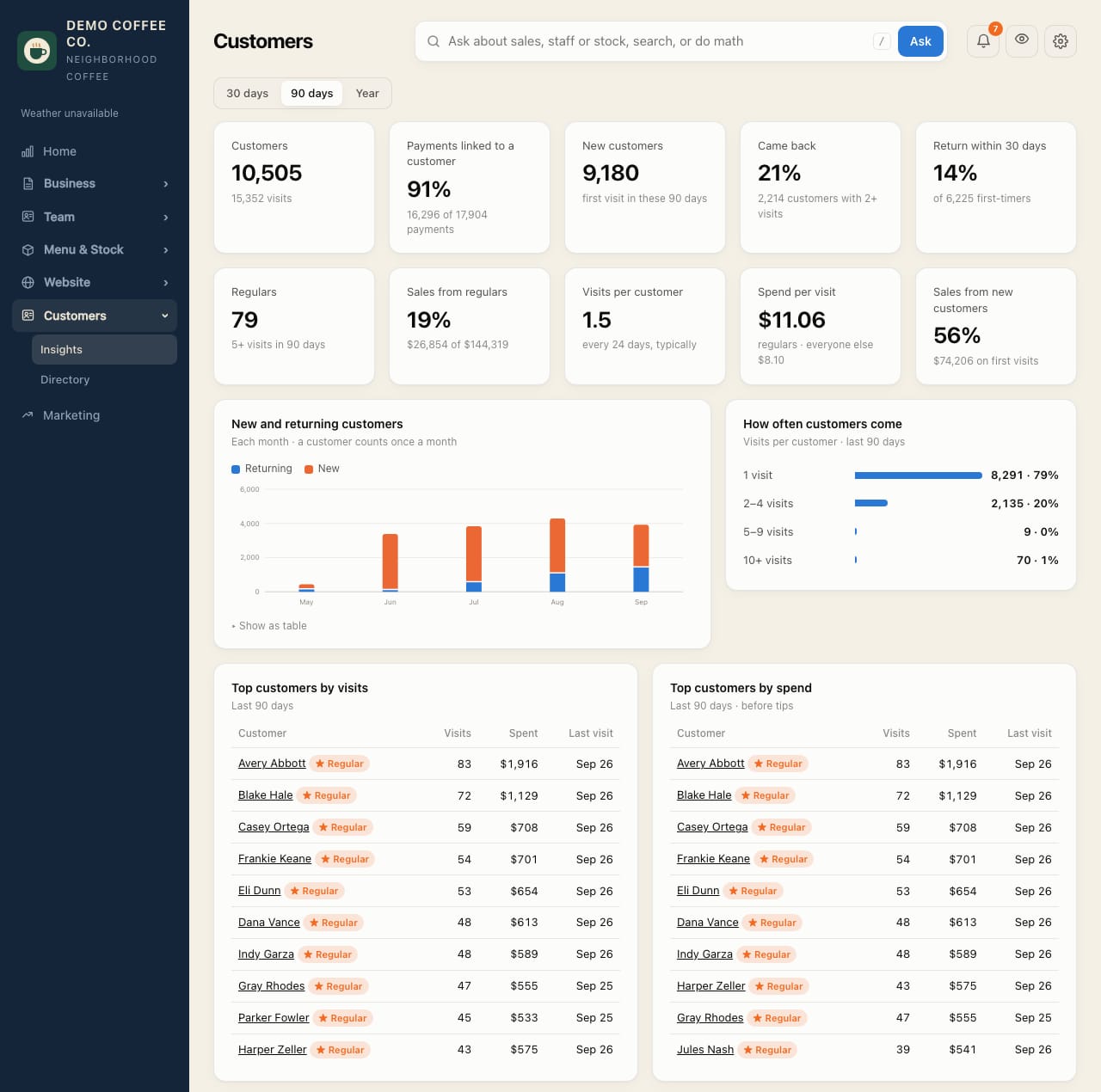
Screenshots show a made-up business with generated data. Menu names and what you can see depend on your role and your plan.