Fix a timecard
Correct a clock-in or clock-out, close one left open, add a missing one or delete a duplicate. Changes save to Square.
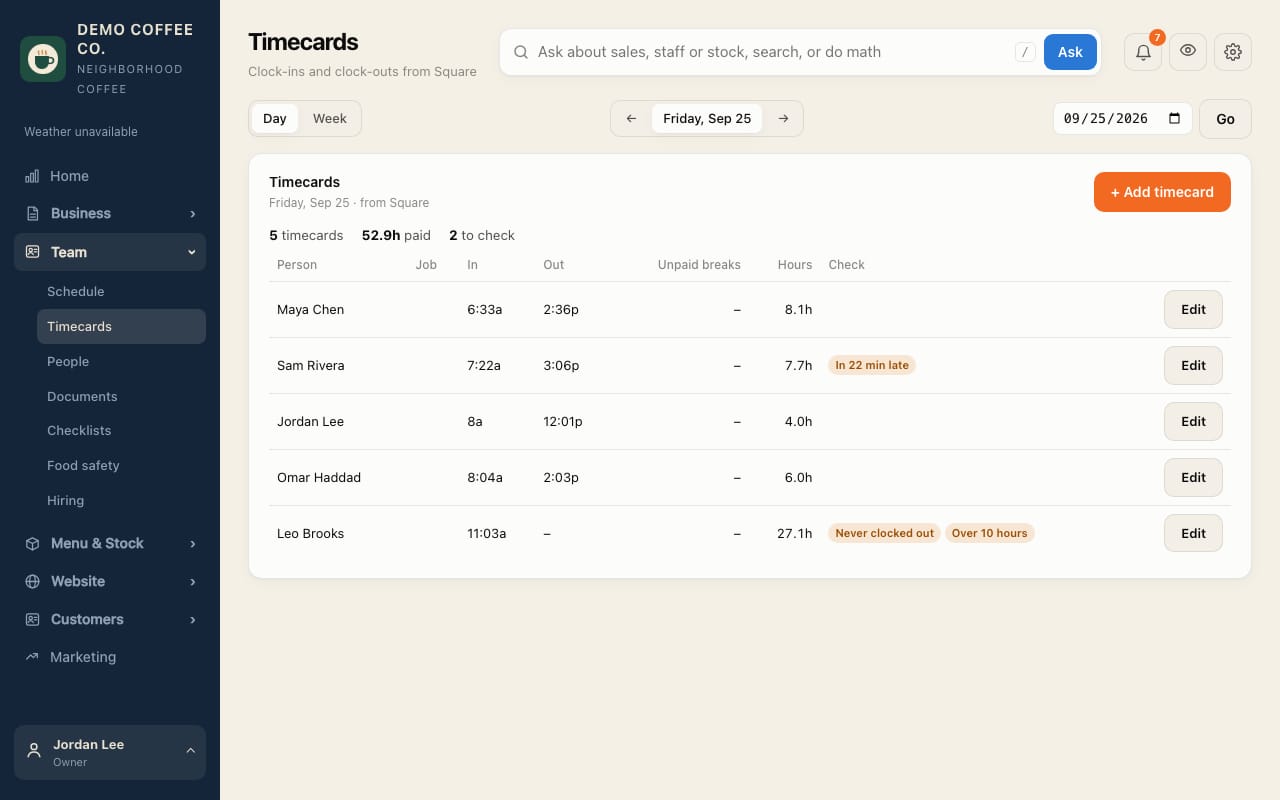
- Open Team → Timecards. Choose Day or Week, and the date.
- Flags show what to check: Never clocked out, Over 10 hours, late or early.
- Tap Edit on the timecard. Change Clock in or Clock out (the −15 min and +15 min buttons help), then tap Save to Square.
- Missing a shift entirely? Tap + Add timecard, choose the person, job and times, and save.
- A duplicate? Open it with Edit and tap Delete timecard.
A clock-out earlier than the clock-in counts as the next day, for overnight shifts.
Which flags show (how late counts as late, and more) is set in Settings → Rules.