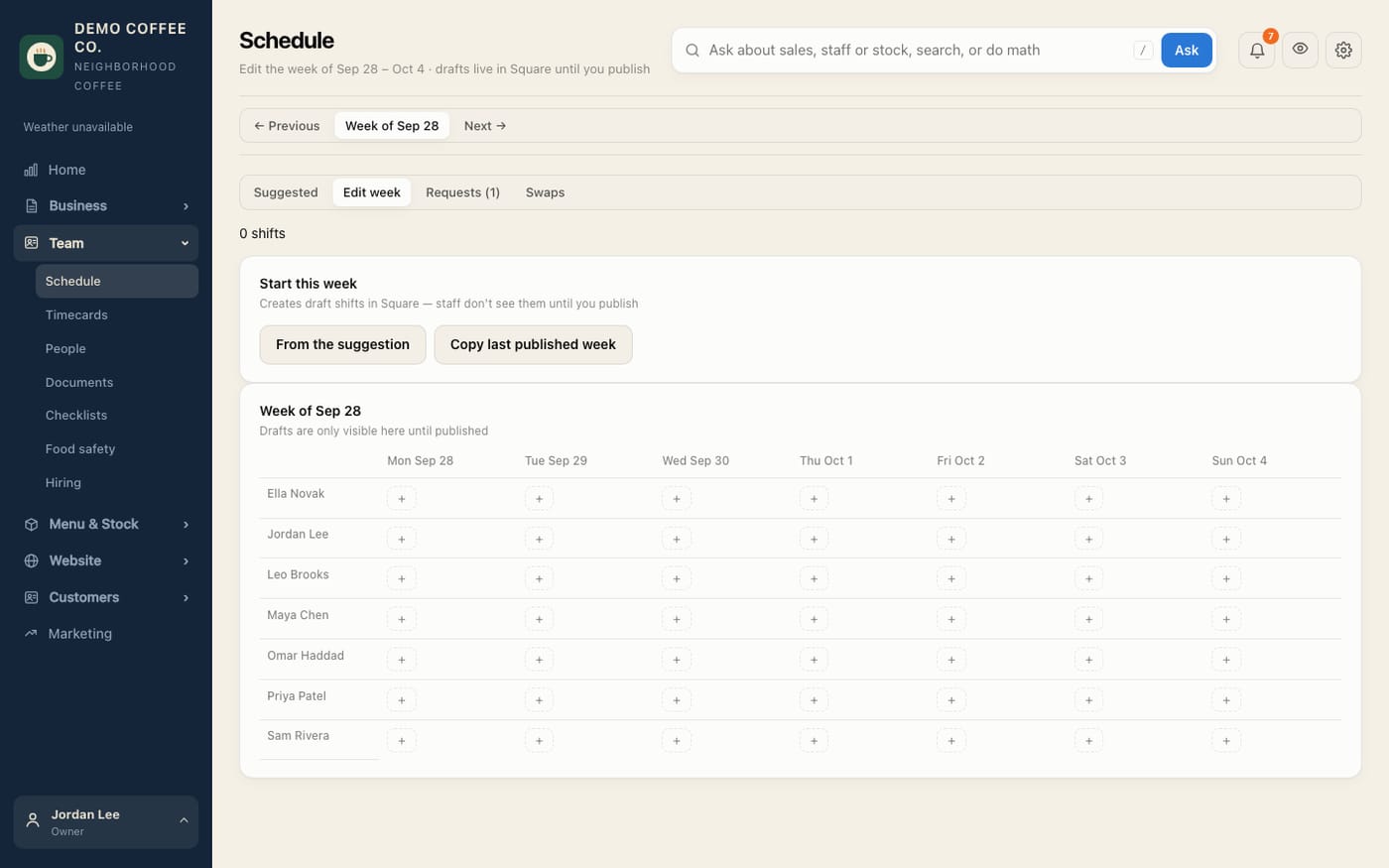
Build and publish next week's schedule
Start from the suggested week or last week, adjust shifts, then publish to Square so the team sees it.
- Open Team → Schedule. The Suggested tab shows a week built from the forecast, everyone's availability and approved time off. Nothing there is sent to Square.
- Open Edit week and use ← Previous and Next → to pick the week.
- Under Start this week, tap From the suggestion or Copy last published week. This makes draft shifts in Square that staff can't see yet.
- Tap + in a person's day to add a shift, or tap a shift to change it. Choose the times and job, then Save draft. Remove this shift deletes one.
- When the week looks right, tap Review & publish. Check What staff will see change, choose who Square should email, and tap Publish.
See "Sending to Square is off"? The owner turns it on in Settings → Square.
Warnings (⚠) point out things like overlapping shifts or someone who's unavailable. They don't stop you saving.