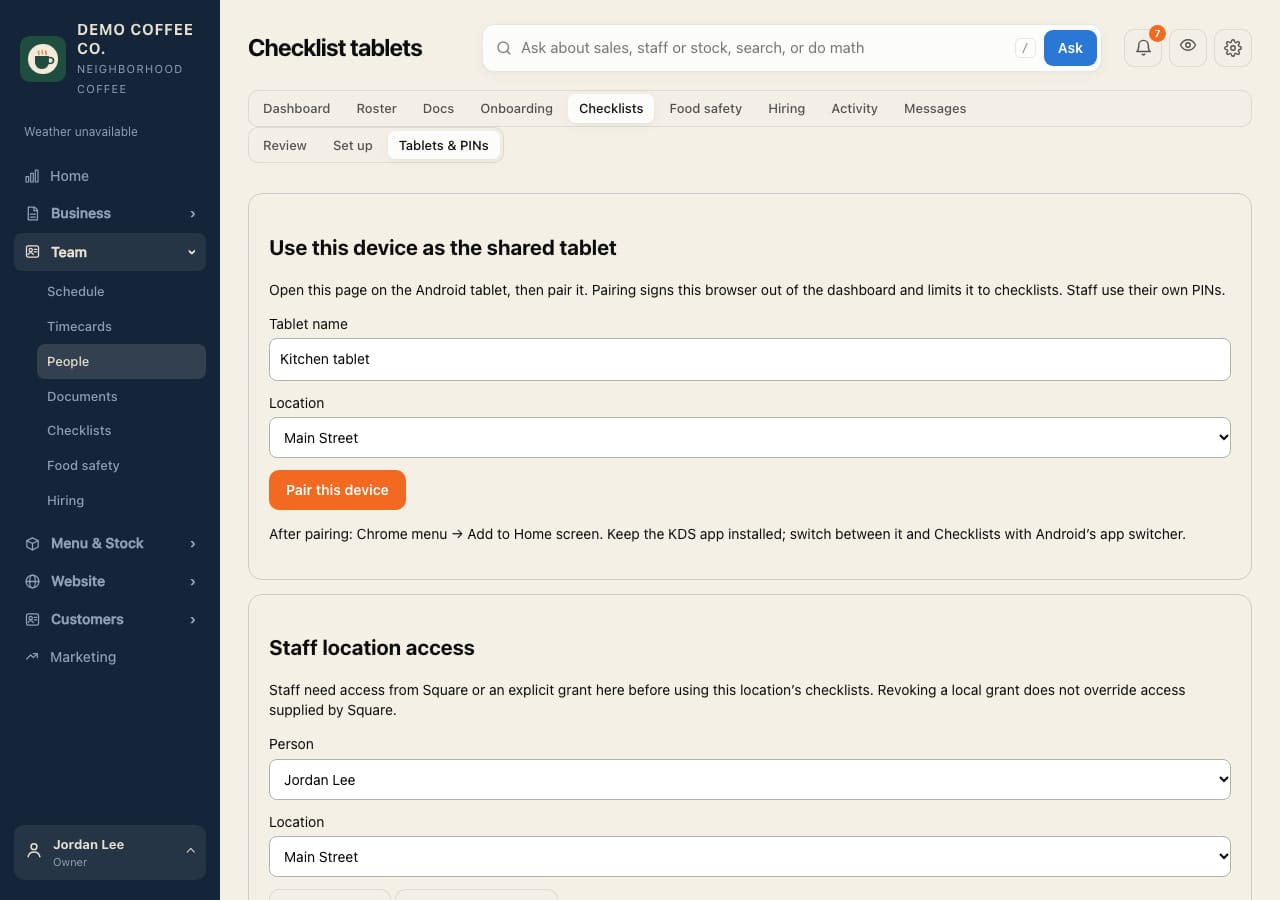
Set up the store tablet
Turn an Android tablet into the shared checklist screen, and manage staff PINs.
- On the tablet, open app.artessencecoffee.com/tablet in Chrome and sign in as a manager.
- It says the device isn't the store tablet yet. Give it a name (like Front counter tablet), choose the store, and tap Set up as the store tablet. You're signed out on that tablet, and from now on it only opens the store tablet pages.
- In Chrome's menu, tap Add to Home screen, so it opens with one tap. It stays set up as long as it's used at least once a month.
- Staff choose their own PIN. To set or reset one, use Set or reset a staff PIN on the same page.
Using a kitchen display app too? Keep it installed and switch between it and Checklists with Android's app switcher.
Pinned note: on the same page, write a note for the top of the tablet's home screen, like "Oat milk delivery at 10". Shift notes staff leave there show on the same page and on Team → Dashboard.