Review applicants and hire
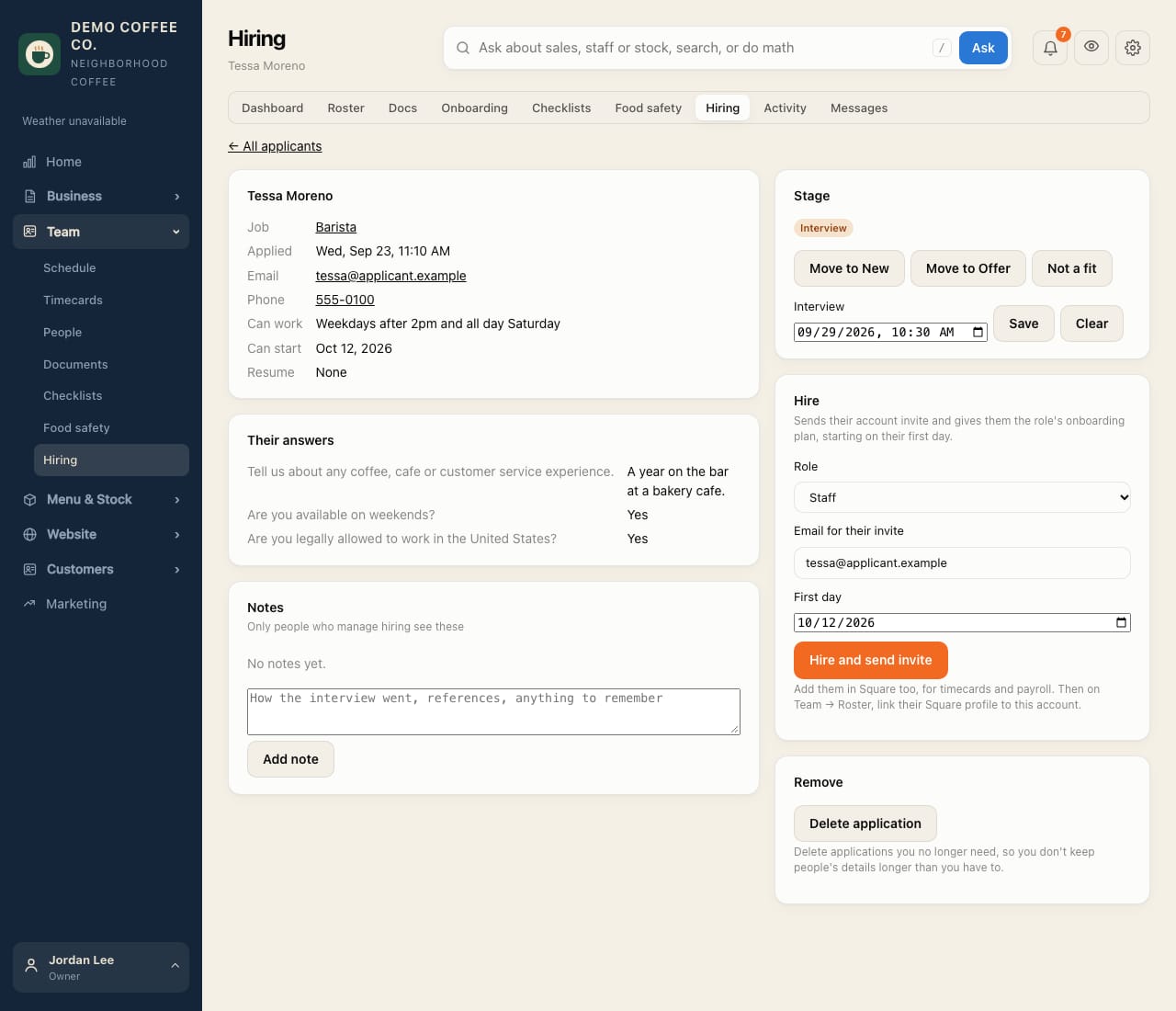
Move applicants from New to Interview and Offer, keep notes, and hire. Hiring sends their invite.
- You get a notification for each new applicant. Open Team → Hiring; Applicants shows the active ones.
- Tap a name to see their answers, when they can work, their start date and resume.
- Set an Interview time and tap Save. They move to Interview.
- Add notes after you meet them. Use Move to Offer, or Not a fit.
- To hire: under Hire, check the role, their email and first day, then tap Hire and send invite. They get their account invite, and their onboarding plan starts on their first day.
Add new hires in Square too, for timecards and payroll, then link their Square profile on Team → Roster.
Delete applications you no longer need, so you don't keep people's details longer than necessary.